Why we built it
Pressing record is the hardest part of a lecture.
Lecture Studio turns any recording into a finished lecture: no script, no slide deck, any background. That takes care of everything after the camera stops. It does nothing for the minute before it starts, when a teacher is alone with a lens instead of a class and twenty minutes to deliver without losing the thread.
A teleprompter fixes most of that. The ones on the market, though, are made for news anchors and video creators. They scroll text. They do not know what a slide is, they cannot tell you that you are three minutes behind your lecture plan, and many ask for an install or a subscription before the first take.
So we built one for teachers and put it in the browser. It keeps the script, the slides and the clock in one place, records the take to your own computer, and hands it to Lecture Studio when you are ready. For now it comes free with Lecture Studio.
What it does
Everything a recorded lecture needs before the edit.
A script and a deck are both optional. Bring either, both or neither.
Scrolls at your pace
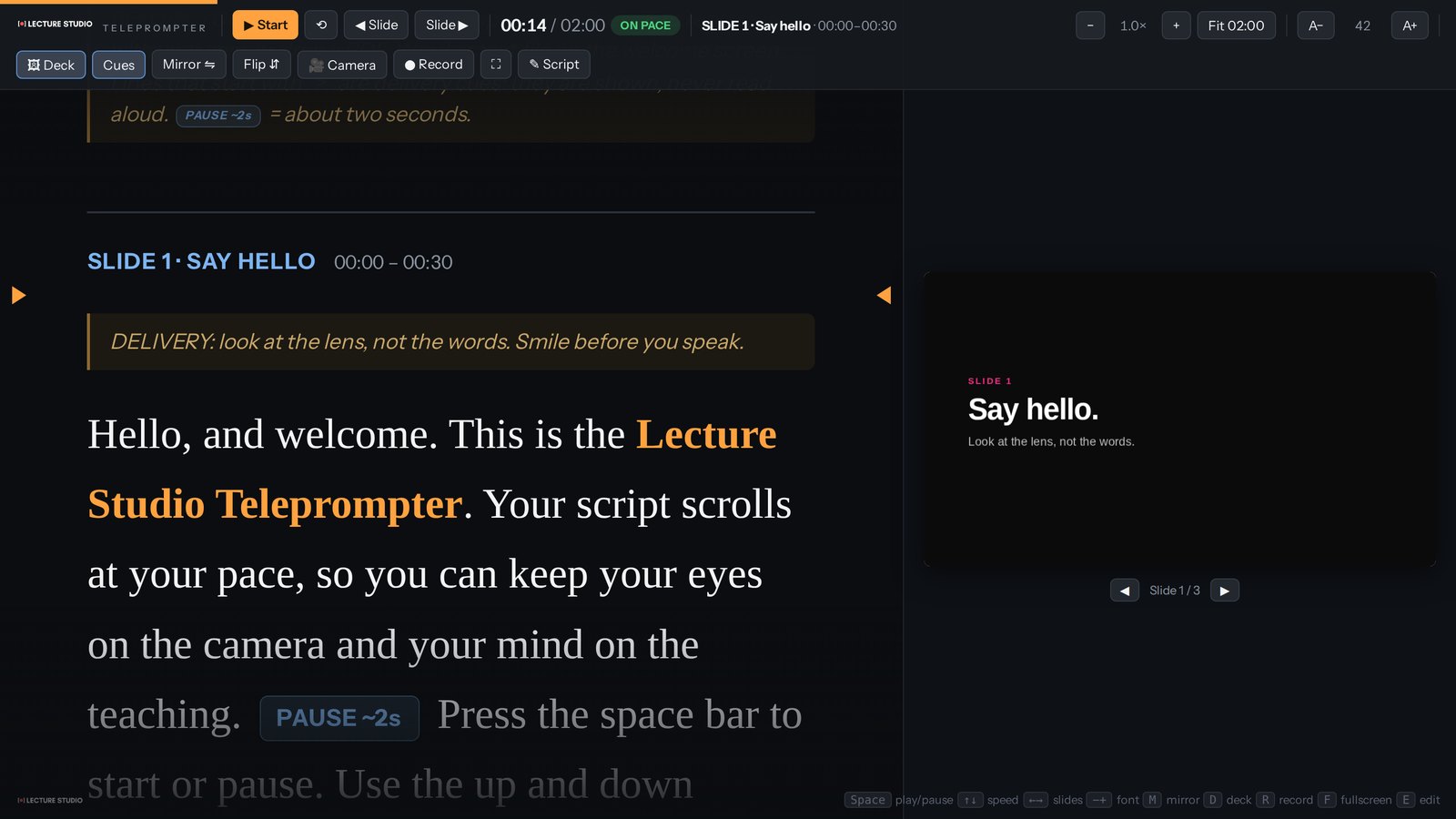
Start, pause and change speed from the keyboard. A focus line holds the words at lens height, so your eyes stay on the camera.
Finishes on time
Set a target length and press Fit. The scroll speed is set so the script ends exactly when the lecture should.
Takes the script you have
Drop in a PDF, a Word file or plain text, or paste it. It is converted for the prompter and you can edit it in place.
Slides beside the words
Drop your deck as a PDF. Each slide appears next to the part of the script it belongs to, in step as you read.
Tells you your pace
Add timecodes to your headings and the toolbar shows on pace, ahead or behind while you speak.
Cues you do not read aloud
Delivery notes, on-screen reminders and pause marks sit in the script, styled apart from the words you say.
Records the take
Camera and microphone, a three-second countdown and a self-view in the corner. Recording starts with the scroll.
Saves to your computer
The video is written to your own Downloads folder. Nothing is uploaded unless you choose to send it.
Works with prompter glass
Mirror and flip modes for beam-splitter rigs, and full screen for a tablet under the lens.
How it helps teachers
What gets easier once the words are in front of you.
I lose my thread on camera.
With no class in the room, one hesitation turns into a restart, and a restart into a third take.
The next sentence is always at reading height. A pause stays a pause.
My lectures run long.
A twenty-minute topic becomes thirty-two minutes once the recording is rolling.
A target time, a pace indicator and Fit keep a twenty-minute lecture at twenty minutes.
I keep looking down at my notes.
Students watching the video see the top of a head every time the notes are checked.
The script sits at the lens line, so you are looking at your students and not at your desk.
Recording takes three tools.
A document for the script, a slide app for the deck, and a camera app to capture it.
Script, slides, camera and the saved file are in one browser tab.
I do not want my takes on someone else's server.
A rough first take is not something every teacher wants stored in a cloud account.
Takes are saved on your computer. One leaves it only when you send it to be produced.
I would rather not use a script at all.
Some teachers are at their best speaking from what they know.
Choose Record without a script. Lecture Studio never needs a script or a deck to produce the lecture.
From take to finished lecture
Record here. Keep it. Send it to production.
The Teleprompter ends where Lecture Studio begins: the take you just recorded is the raw lecture the production engine works on.
Add a script or a deck
Optional. Drop in the files you already have, or skip both and just talk.
Press record
A countdown, then the scroll and the recording start together. Stop when you are done.
Keep the take
The video saves to your computer. Saving straight to your Lecture Studio workspace Soon
Produce it
Drop the take into Lecture Studio. One click sends it through the whole engine: cleanup, structure, teaching visuals, captions and branding.
The recording is yours first
When you stop, the Teleprompter tells you where the file went and offers the next step. Nothing happens to the take unless you choose it.
- Saved to your Downloads folder, named with the date and time
- One button opens Lecture Studio to produce it
- Record another take as many times as you like
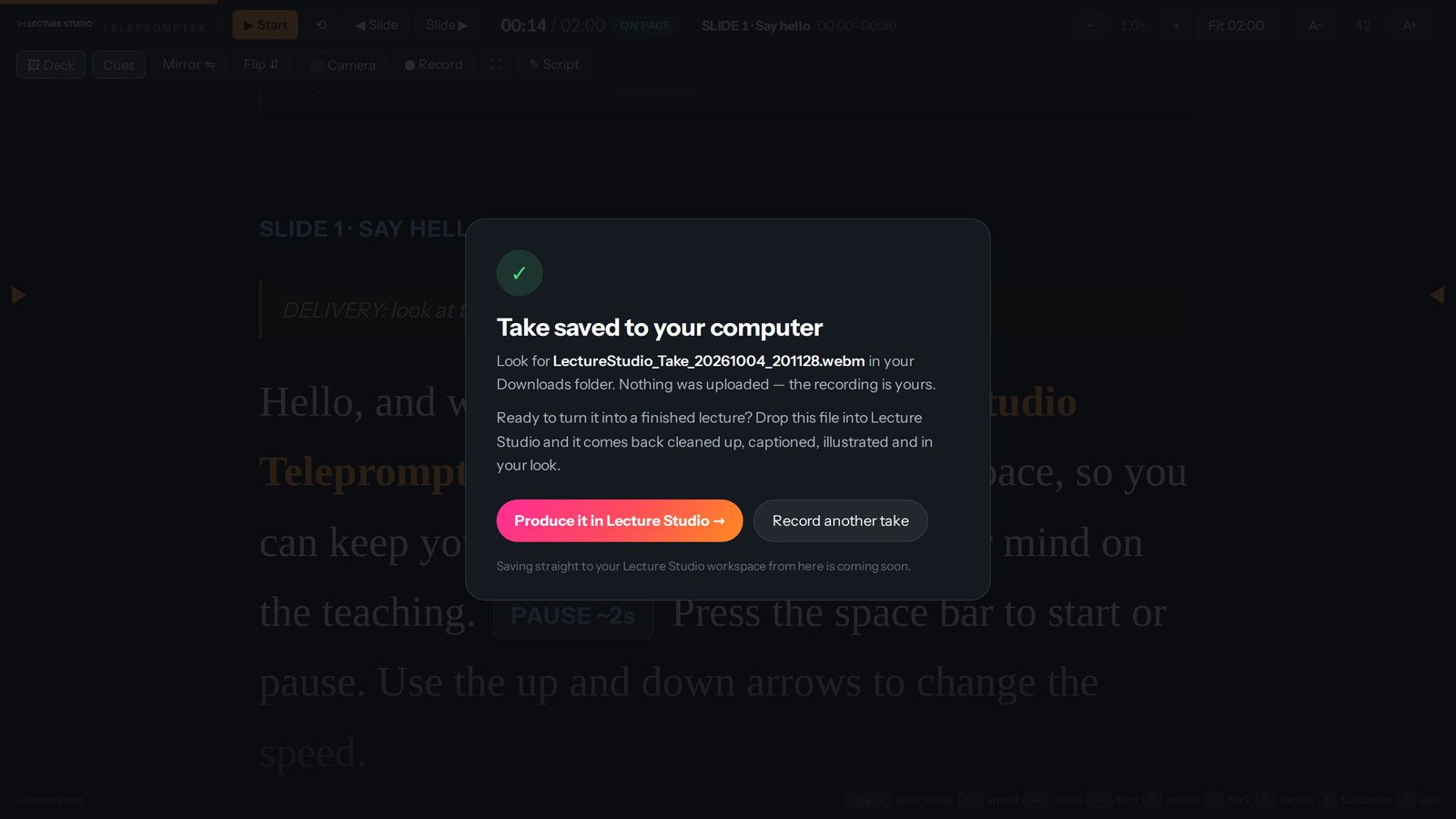
The Teleprompter runs in your browser and uses its camera and microphone. Chrome, Edge and Firefox save the take as .webm; Safari saves .mp4. Lecture Studio accepts both.
Open it, read one paragraph, press record.
The Teleprompter is free with Lecture Studio. There is nothing to install and no account to create.